
From managing SDK installers manually to managing your entire .NET toolchain with one CLI.
The .NET ecosystem has evolved tremendously. We can build cloud-native applications, distributed systems, serverless workloads, APIs, desktop applications, and AI-powered solutions using a common development platform. But there is one part of the developer experience that has traditionally been more complicated than it needs to be: managing the .NET SDKs and runtimes on our development machines.
Imagine working on three different projects. One requires .NET 8, another targets .NET 10, and a third needs a preview SDK to evaluate an upcoming feature. Now imagine reproducing the same environment on a new laptop, a Linux build agent, or a temporary development container.
You might need to download different installers, configure environment variables, adjust your PATH, check SDK versions, and troubleshoot conflicts between system-wide and user-level installations.
For experienced .NET developers, these tasks are familiar. But familiarity does not necessarily mean they are efficient.
On October 15, 2026, Microsoft introduced the public preview of dotnetup, a toolchain manager designed to simplify how developers install, manage, and update .NET SDKs and runtimes.
The idea is straightforward: instead of treating each SDK installation as a separate task, manage your .NET toolchain through a consistent command-line experience.
Let’s explore the problem it solves, how it works, how to install and use it, and where it fits into modern .NET development.
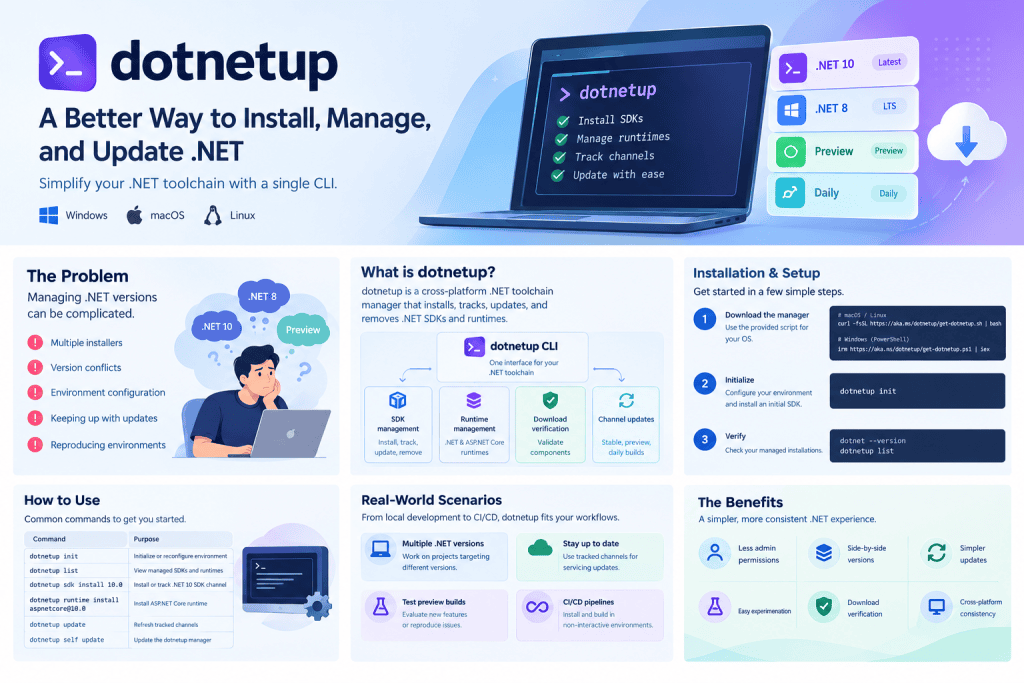
The real problem: .NET version management is part of everyday development
Consider a typical development team building enterprise applications.
One team maintains a legacy application targeting an older supported .NET version. Another develops new APIs on the latest LTS release. A platform engineering team experiments with preview builds. Meanwhile, CI pipelines must build and test these applications using the correct SDK versions.
All these activities require developers to manage their local toolchains.
The traditional approach
Historically, developers have used several approaches to install .NET:
- Official platform-specific installers.
- Package managers such as Homebrew and Linux distribution package managers.
- Microsoft’s
dotnet-install.shanddotnet-install.ps1scripts. - IDE-managed installations, particularly those associated with Visual Studio.
- Custom scripts and manually configured installation directories.
These approaches remain useful. The problem is not that any one of them is inherently bad. The problem is that installation, version tracking, updating, and cleanup are spread across different mechanisms.
A familiar developer experience
Installing a new SDK: Find the right installer, download the SDK, and determine where it was installed.
Managing multiple versions: Keep older SDKs for existing projects while adding newer SDKs for new development.
Fixing environment conflicts: Investigate PATH precedence, runtime discovery, and differences between system and user installations.
Keeping everything current: Update SDKs and runtimes without accidentally removing versions another project still needs.
Each task is manageable on its own. The friction comes from repeating them across machines, projects, and environments.
Why this matters beyond developer convenience
Toolchain management affects more than the time spent installing software.
Developer onboarding: A new team member may spend valuable time reproducing the correct development environment instead of understanding the codebase.
Build reproducibility: Different SDK versions can produce different build behavior. If the SDK selection is not controlled, developers may encounter problems that do not appear on CI—or vice versa.
Security and maintenance: .NET servicing releases deliver security and quality improvements. Developers need a reliable way to adopt relevant updates.
Preview testing: Evaluating nightly or preview builds can involve managing additional installations and ensuring they do not interfere with stable development.
Automation: Ephemeral CI agents and development containers need predictable ways to acquire the toolchain they require. These are the kinds of recurring problems that a dedicated toolchain manager is designed to address.
What exactly is dotnetup?
dotnetup is a cross-platform .NET toolchain manager that installs, tracks, updates, and removes .NET SDKs and runtimes in a user-managed installation location.
It is currently available in public preview, so its behavior and feature set may evolve before general availability.
Think of it as a dedicated manager for the .NET development toolchain.
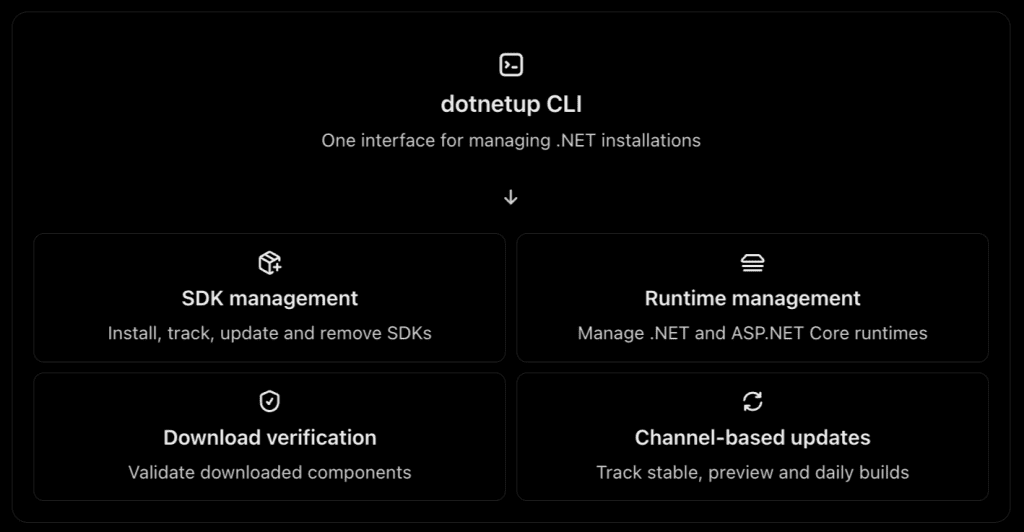
The official documentation describes dotnetup as a manager for user-level .NET installations. It supports Windows, macOS, and Linux, including x64 and Arm64 on the documented supported platforms.
Is dotnetup a replacement for the .NET SDK?
No. This distinction is important.
| Component | Responsibility |
|---|---|
dotnetup | Manages SDK and runtime installations |
dotnet CLI | Builds, runs, tests, publishes, and manages .NET projects |
| MSBuild | Executes build logic |
| NuGet | Manages .NET package dependencies |
global.json | Influences which SDK a project uses |
| IDEs such as Visual Studio | Provide the development environment and related tooling |
You will continue using familiar commands such as dotnet build, dotnet test, and dotnet publish. dotnetup helps ensure that the required .NET toolchain is installed and available.
Is dotnetup similar to rustup or nvm?
Yes, conceptually.
Developers in other ecosystems may already use tools such as rustup for Rust or nvm for Node.js. These tools reduce the friction involved in managing different versions of a language’s development environment.
dotnetup brings a similar toolchain-management approach to .NET. However, it specifically manages .NET SDKs and runtimes; it is not a universal package manager for every developer dependency.
How dotnetup works
The important shift is from managing individual installations manually to declaring what kind of toolchain you want to track.
For example, you could ask dotnetup to track the latest stable SDK, a specific major version, a preview SDK, or an exact SDK version.
The manager resolves that requirement, installs the corresponding components, records what it manages, and can update the installation later.
A simplified workflow
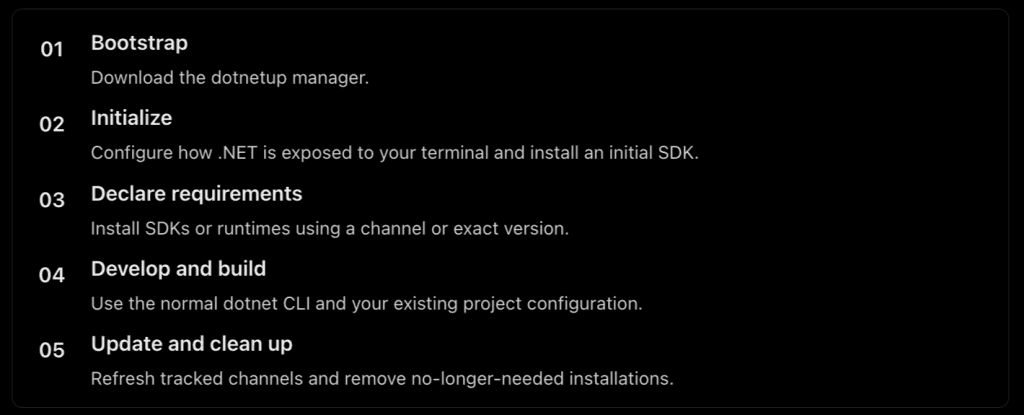
This is the central idea: make toolchain management a consistent workflow rather than a collection of unrelated installation tasks.
User-local installations
A major feature of dotnetup is its user-local installation model. Its SDKs, runtimes, and management metadata can live within the user’s own directory rather than requiring a system-wide installation.
This is particularly helpful on development machines where you do not have administrator permissions, as well as in containers and temporary build environments.
There is an important platform distinction, though: on Windows, the default everywhere access mode changes the system PATH and requires elevation for that change. You can choose a more restricted access mode instead.
Tracked channels versus exact versions
One of the most useful concepts is the difference between a channel and an exact version.
10.0means you want to track the latest applicable SDK within the .NET 10.0 line.latestmeans you want the latest stable SDK, including new major releases when applicable.ltsmeans you want the latest active stable LTS SDK.previewanddailylet you track prerelease and daily builds.- An exact version such as
10.0.103represents a fixed version requirement.
When you run an update, tracked channels can resolve to newer matching releases. An exact version stays pinned. This gives developers a choice: follow an evolving channel or deliberately stay on a specific version.
How to install dotnetup
Let’s move from concepts to practice.
The following commands follow Microsoft’s published getting-started guidance. Because dotnetup is in public preview, check the official documentation before adopting it in production engineering workflows.
Step 1: Download the manager
Choose the command for your operating system.
macOS
Run in a Zsh or Bash-compatible terminal:
curl -fsSL https://aka.ms/dotnetup/get-dotnetup.sh | bashLinux
Run in Bash:
curl -fsSL https://aka.ms/dotnetup/get-dotnetup.sh | bashWindows
Run in PowerShell:
irm https://aka.ms/dotnetup/get-dotnetup.ps1 | iexSecurity note: These commands download and execute a remote bootstrap script. Before running them, review the official installation instructions and your organization’s security policies. Microsoft’s published scripts verify the downloaded manager using a SHA-512 checksum.
Step 2: Initialize dotnetup
After installation, run:
dotnetup initThe initialization wizard configures your environment and, by default, installs the latest stable SDK. You can customize the SDK channel and how .NET is exposed to your shell.
Depending on the platform and configuration, the wizard can offer options for environment access and migration from existing system installations.
Step 3: Verify the installation
Open a new terminal and execute:
dotnet --version
dotnetup list
The first command reports the SDK selected by the normal dotnet CLI. The second shows the SDKs and runtimes managed by dotnetup.
If you selected none mode, use:
dotnetup dotnet -- --version
dotnetup list
In none mode, dotnetup does not configure the environment variables that make its managed .NET installation the default for ordinary dotnet commands.
Essential dotnetup commands every developer should know
Here are the main commands to start with.
| Command | Purpose |
|---|---|
dotnetup init | Initialize or reconfigure the environment |
dotnetup list | Inspect managed SDKs and runtimes |
dotnetup sdk install 10.0 | Install or track the .NET 10 SDK channel |
dotnetup sdk install preview | Install or track a preview SDK |
dotnetup sdk install daily | Install or track a daily SDK build |
dotnetup runtime install aspnetcore@10.0 | Install or track the ASP.NET Core runtime for .NET 10 |
dotnetup update | Refresh tracked SDK and runtime requirements |
dotnetup self update | Update the dotnetup manager itself |
dotnetup --info | Display diagnostic information |
These commands are based on the published CLI examples. For precise version syntax, supported options, and the difference between installing and tracking requirements, consult the official dotnetup getting-started guide and command reference.
One subtle but important point: dotnetup list is not simply a list of every .NET installation on the machine. It inventories installations managed by dotnetup. Other tools may own separate installations.
Real-world examples: using dotnetup in daily development
The best way to understand dotnetup is to see how it fits into actual developer workflows.
Scenario 1: Working on projects targeting different .NET versions
Suppose you maintain two applications:
- An enterprise API targeting .NET 8.
- A new application targeting .NET 10.
You can install or track both SDK channels:
dotnetup sdk install 8.0
dotnetup sdk install 10.0

dotnetup list
Now you have a straightforward way to manage the two SDK requirements side by side.
For predictable builds, each repository should still define its intended SDK selection where appropriate using global.json. dotnetup manages the installations; global.json helps the CLI select the SDK for a project.
For example, a repository might contain:
{
  "sdk": {
    "version": "10.0.100",
    "rollForward": "latestFeature"
  }
}
This is an illustrative configuration: use a version actually available in your environment and choose the roll-forward policy that fits your team’s requirements.
The important distinction is that installing a newer SDK does not mean every project should automatically start using it. SDK selection and runtime targeting are separate concerns.
Scenario 2: Keeping development environments up to date
.NET receives regular servicing updates. Developers need to maintain the SDKs and runtimes they use without constantly repeating manual installation steps.
With tracked channels, the workflow becomes:
dotnetup update
dotnetup list
The first command refreshes tracked requirements; the second helps you inspect the managed installations afterward.
If a channel tracks 10.0, it can move to a newer matching release. If you track an exact version, that requirement stays pinned.
An important production distinction: Updating a development machine does not automatically patch applications already deployed to production. Applications must be rebuilt, republished, or redeployed as appropriate for their deployment model.
Scenario 3: Testing preview and nightly builds
Suppose your team wants to evaluate an upcoming SDK feature or reproduce a runtime issue reported against a daily build.
Instead of manually downloading and extracting builds into custom directories, you can use:
dotnetup sdk install previewOr, for a daily SDK build:
dotnetup sdk install dailyIf you need to test only the runtime:
dotnetup runtime install dailyThis gives you a more consistent way to manage experimental toolchains alongside your stable development setup.
My recommendation: Use preview builds for early compatibility testing, SDK validation, and bug reproduction. Do not make an unvalidated daily build the default toolchain for a critical production release pipeline.
Scenario 4: Setting up a new development machine
Imagine onboarding a developer to a Clean Architecture-based .NET solution with several APIs, background workers, automated tests, and shared libraries.
Previously, onboarding documentation might tell the developer to download several SDKs, verify their versions, and configure environment variables manually.
With dotnetup, the setup can begin with a consistent bootstrap and initialization process. The team can then install the SDK channels or exact versions needed by its repositories.
This simplifies one part of onboarding, but it does not replace the rest of the development environment setup. Developers still need source control, IDEs, credentials, database tools, certificates, and other project-specific dependencies.
How to use dotnetup with global.json
This is particularly important for teams working on enterprise .NET applications.
A common misconception is that a toolchain manager automatically guarantees reproducible builds. It does not. Reproducibility depends on how the SDK is selected and how the build environment is configured.
global.json is still central to that process.
Consider this workflow:
1. Declare the SDK requirement
Commit a global.json file containing the SDK version and roll-forward policy your project needs.
2. Install the compatible SDK
Use dotnetup to make the required SDK available in the managed installation.
3. Validate the selected SDK
Run dotnet --version from the repository directory and verify that the expected SDK is selected.
For example:
cd MyEnterpriseSolution
dotnet --version
dotnet restore
dotnet build
dotnet test
The SDK selection depends on the global.json file, the available SDKs, the roll-forward policy, and the environment from which the CLI is invoked.
A team should therefore validate its complete build workflow rather than assuming that installing a version automatically selects it.
For additional information, see Microsoft’s global.json SDK selection documentation.
Can dotnetup be used in CI/CD pipelines?
Yes. Microsoft explicitly identifies CI pipelines and ephemeral build environments as suitable scenarios for dotnetup.
Consider a GitHub Actions or Azure DevOps pipeline that needs a particular SDK version to build and test a repository.
The basic concept is to bootstrap the manager, install the required SDK, and run the standard .NET CLI commands.
An illustrative shell workflow looks like this:
# Bootstrap dotnetup on the build agent
curl -fsSL https://aka.ms/dotnetup/get-dotnetup.sh | bash

# Initialize the environment
dotnetup init

# Install the SDK required by the repository
dotnetup sdk install 10.0

# Validate the SDK and build
dotnet --version
dotnet restore
dotnet build --configuration Release
dotnet test --configuration Release
This demonstrates the workflow, not a complete, production-ready pipeline. A CI job must also configure PATH correctly, select the intended SDK, handle non-interactive execution, and use a verified installation strategy.
For production CI/CD, I recommend the following practices:
- Pin the manager’s bootstrap version or otherwise control how the bootstrap resolves versions.
- Pin the SDK using
global.jsonor an exact version when deterministic builds require it. - Validate downloads and follow your organization’s software supply-chain policies.
- Cache installations where appropriate to reduce repeated downloads.
- Run tests against the same SDK and runtime combinations used by your deployment process.
- Keep preview and daily builds in isolated validation pipelines.
- Review environment changes carefully, especially when running on shared build agents.
There is also an important distinction between what is available today and what is planned. Microsoft’s announcement describes deeper integrations with GitHub Actions and Azure DevOps as roadmap goals, rather than claiming that all existing CI setup mechanisms have already been replaced.
What are the main advantages of dotnetup?
Let’s summarize the practical benefits.
1. Less dependence on administrator permissions
User-local installations can simplify development on restricted machines and temporary environments. Windows everywhere mode has separate elevation requirements for environment configuration.
2. Better side-by-side version management
Keep the SDKs and runtimes required by different projects without relying on a single machine-wide installation.
3. Simpler updates
Refresh tracked SDK and runtime channels with a consistent command rather than manually managing each version.
4. Easier experimentation
Install preview and daily builds to test upcoming features or investigate runtime bugs.
5. Download verification
The published bootstrap and management workflows include verification mechanisms that help validate downloaded components.
6. A more consistent workflow across platforms
The same management concepts and CLI are available across supported Windows, macOS, and Linux environments.
These benefits follow from the tool’s documented capabilities. The actual time savings will depend on how many SDKs you manage, how frequently you update, and how your development environments are currently configured.
When should you use dotnetup—and when should you not?
dotnetup is useful, but it is not automatically the right choice for every environment.
| Scenario | Recommendation |
|---|---|
| macOS or Linux developer managing several SDKs | Strong candidate |
| Developer without admin permissions | Useful for user-local installations |
| Testing preview or nightly SDKs | Strong candidate |
| Temporary development containers | Worth evaluating |
| CI agents needing on-demand SDK installations | Worth evaluating |
| Team already using a mature toolchain manager | Compare before migrating |
| Enterprise Windows machine with complex Visual Studio dependencies | Pilot carefully |
| Production server running deployed applications | Not a replacement for runtime patching and deployment management |
A special note for Windows developers
Windows deserves extra attention because existing .NET installations may be managed by Visual Studio or system-wide installers.
In everywhere mode, the dotnetup-managed installation can take precedence over machine-wide installations in Program Files. If a project depends on an SDK or runtime available only in the machine-wide location, builds or application launches may fail.
Microsoft documents migration options and alternative access modes for these scenarios.
For an established enterprise workstation, I would begin with a controlled pilot rather than immediately changing the default .NET installation for the entire machine.
What dotnetup does not solve
A balanced evaluation should also recognize its boundaries.
It does not replace global.json. You still need to define and validate project-level SDK selection.
It does not manage every developer dependency. Node.js, Java, databases, IDEs, NuGet packages, and other tools have their own management mechanisms.
It does not automatically update production applications. Updating the local runtime is not equivalent to rebuilding and deploying an application.
It does not eliminate every environment conflict. PATH configuration, IDE integration, existing installations, and application runtime discovery still matter.
It is still in public preview. Teams should evaluate its current behavior, operational requirements, and limitations before standardizing on it.
These are not necessarily weaknesses in the design. They clarify the problem that dotnetup is intended to solve: management of the .NET toolchain itself.
What about AI-assisted development and coding agents?
This is an interesting area to watch.
Modern .NET development increasingly involves coding agents that create projects, modify solutions, execute tests, and troubleshoot build failures.
Consider an agent tasked with implementing a new feature in a repository. Before changing any code, it needs to understand the project, identify the expected SDK, and ensure that the appropriate toolchain is available.
A predictable toolchain-management interface could help agents perform these steps more consistently.
For example, a development agent could be instructed to:
- Inspect
global.jsonand the repository’s target frameworks. - Check the available SDKs.
- Install the required SDK if it is missing and the environment permits it.
- Restore, build, and test the solution.
- Report the SDK version and any environment problems.
dotnetup provides capabilities that could support this workflow. Microsoft’s announcement also identifies improving the tool’s integration with automated assistants as an area of interest.
However, this should be treated as an opportunity rather than an automatic capability. An agent still needs appropriate permissions, reliable instructions, and guardrails.
For enterprise coding agents, I would recommend allowing only approved SDK channels, validating download sources, avoiding uncontrolled system-level environment changes, and recording the toolchain version used for each build.
That is how toolchain management can become part of a broader, governed agentic development workflow.
A practical adoption checklist for .NET teams
If you are considering introducing dotnetup to your team, start small.
Adoption checklist
[ ] Inventory existing SDKs and runtimes
Record which projects and pipelines depend on each version.
[ ] Review global.json files
Identify pinned SDK versions and roll-forward policies.
[ ] Pilot on a developer machine
Test installation, environment configuration, and IDE integration.
[ ] Validate side-by-side versions
Build older and newer projects without changing their intended SDK selection.
[ ] Test servicing updates
Confirm that tracked channels update as expected and pinned versions remain fixed.
[ ] Test preview isolation
Use a non-production project or dedicated pipeline for preview and daily builds.
[ ] Validate CI/CD workflows
Test non-interactive setup, caching, permissions, and reproducibility.
[ ] Document the team standard
Define approved channels, supported modes, troubleshooting steps, and ownership.
Final thoughts: a small tool addressing a real developer problem
The introduction of dotnetup is not about replacing the .NET CLI or reinventing how developers build applications. It is about simplifying one of the recurring operational tasks surrounding .NET development.
Installing an SDK should not require every developer to understand the details of system-wide installations, environment configuration, download locations, and cleanup. Managing multiple versions should be a routine part of development rather than a recurring source of friction.
That is the promise of dotnetup: a more consistent way to install, track, update, and remove .NET SDKs and runtimes.
For developers maintaining multiple applications, testing new .NET releases, or working across macOS and Linux environments, it is worth exploring. For enterprise teams, the best approach is to evaluate it through a controlled pilot, with particular attention to SDK selection, IDE compatibility, CI reproducibility, and existing Windows installations.
The public preview is an opportunity to explore the workflow, test it against real projects, and provide feedback while the tool evolves.
The bigger lesson is simple: great developer experiences are not built only by making application code easier to write. They also come from removing friction from everything developers need before they can write, build, test, and ship that code.
Further reading
- Introducing dotnetup: A toolchain manager for .NET — Microsoft .NET Blog
- Get started with dotnetup — Microsoft Learn
- dotnetup documentation and command reference
- global.json SDK selection — Microsoft Learn
- Troubleshoot dotnetup — Microsoft Learn